How to demo experimentation, audiences, and campaigns in Document Authoring
This demo is designed for pre-sales teams showing how authors can run A/B tests, personalize content for different audiences, and serve targeted campaign experiences — all from the authoring environment. No code changes, no developer tickets, no tag manager configuration.
Use this scenario for any brand that needs to optimize content performance, personalize by audience segment, or coordinate campaign-specific landing pages.
Demo environment
This demo uses the AEM Experimentation plugin, which is already instrumented in the project codebase. Solution Consultants only need to work in the DA authoring environment and preview on the `.aem.page` environment.
The plugin provides three capabilities configured entirely through page metadata:
Key value propositions to call out early:
- Privacy-first: No cookies, no end-user data persisted, no opt-in required
- Zero developer dependency: Authors control everything through page metadata
- Built-in simulation: Preview every variant before publishing
- Native RUM reporting: Performance data flows automatically through AEM Real User Monitoring
Part 1: Experiments (A/B Testing)
What to emphasize
- Authors can set up a full A/B test in under 2 minutes — no code, no tickets
- The control page is the original; variants are just duplicated pages with content changes
- Traffic split is automatic and even by default, but authors can customize the ratio
- Time-bound experiments let authors schedule tests without developer involvement
- Privacy-compliant out of the box — no cookies, no opt-in required
Steps
-
Show the control page — open the live page in the browser and point out the current hero content. This is the "control."
-
Create a variant page — in the authoring environment, duplicate the control page, rename it (e.g.
my-page-variant-1), make a visible change to the hero (swap the headline, change the CTA text, or use a different image), and preview to confirm. -
Instrument the experiment — open the control page in the authoring environment, scroll to the Metadata block at the bottom, and add these rows:
- Experiment:
hero-test - Experiment Variants:
https://{branch}--{repo}--{owner}.aem.page/my-page-variant-1
Explain: the control page gets 50% of traffic, the variant gets 50% — split evenly by default.
- Experiment:
-
Show custom split ratios — to give the variant less traffic, add a row:
- Experiment Split:
30
This gives 30% to the variant and 70% to the control (100% minus variant splits = control).
- Experiment Split:
-
Preview and simulate — preview the control page on the
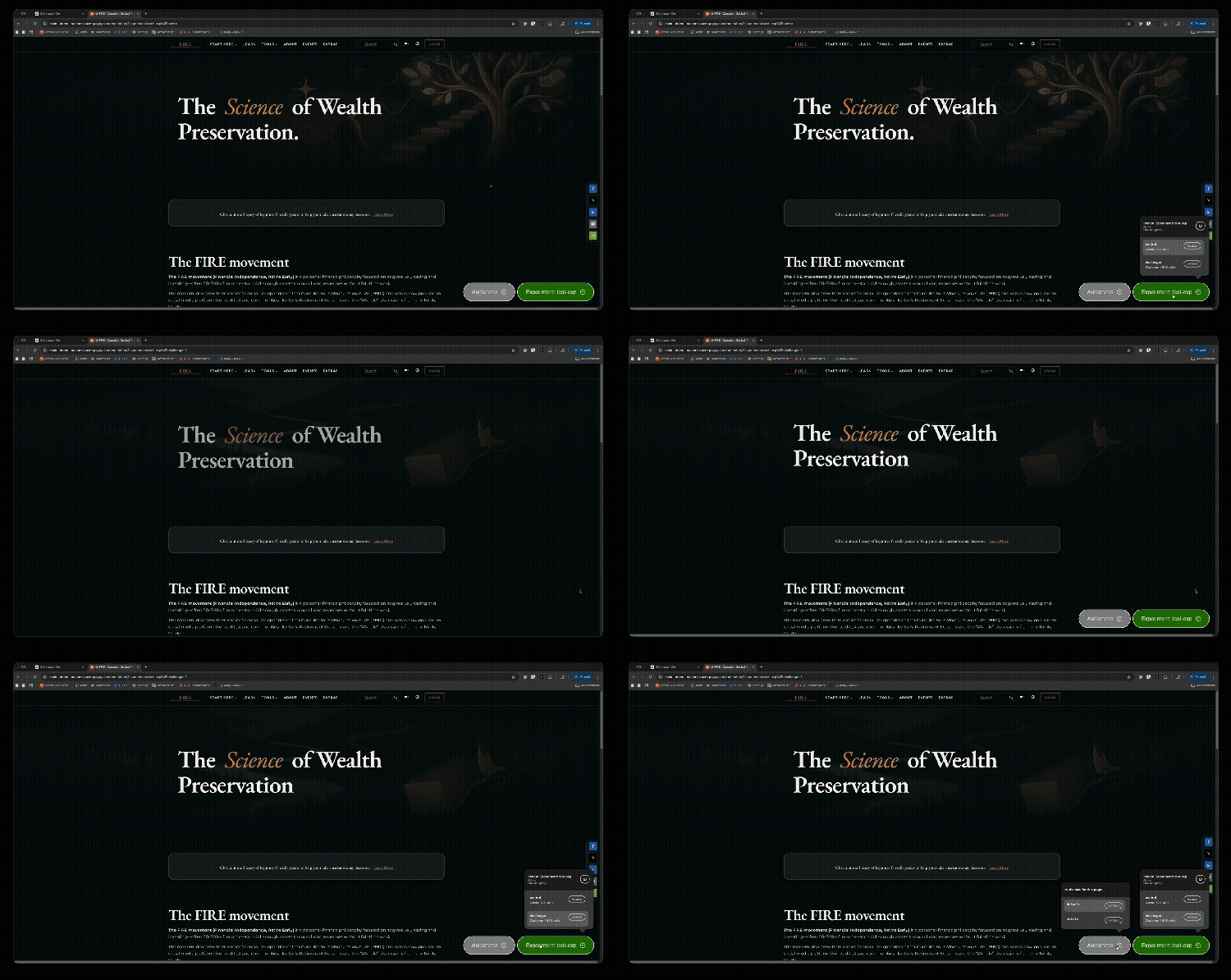
.aem.pageenvironment. Point out the experimentation overlay pill at the bottom of the page. Click the pill to expand — it shows the experiment name, all configured variants with traffic splits, and Simulate links to preview each variant directly. -
Time-bound experiments — mention that authors can set start and end dates:
- Experiment Status:
Active - Experiment Start Date:
2026-04-01 - Experiment End Date:
2026-04-30
- Experiment Status:
-
The experiment only runs within the specified window. Status supports Active/Inactive.
Close with: "The author just set up a full A/B test without writing a single line of code. The experiment is privacy-compliant out of the box, and performance data flows automatically through AEM RUM."
Part 2: Audiences (content personalization)
What to emphasize
- Audiences resolve automatically based on session conditions — no URL parameter needed
- Segments are defined once in code by a developer (mobile, desktop, geo, etc.) and reusable across all pages
- Authors just reference the segment name in metadata — no knowledge of the underlying logic required
- Flexible notation:
Audience: Mobile,Audience (Mobile), orAudience Mobileall work - Simulation URL with
?audience=mobileis useful for sharing previews with stakeholders
Steps
-
Audience definitions (talking point only — no live action) — audiences are defined once in the project codebase by a developer (e.g.
mobile,desktop,us,eu). Once defined, authors can use them freely across any page. Common examples: device type, geography, new vs. returning visitor, connection speed. -
Create audience-specific content — in the authoring environment, create a variant page for mobile (e.g.
my-page-for-mobile). Make mobile-appropriate changes — simplified layout, larger CTAs, less text. -
Instrument audiences — open the main page's Metadata block and add:
-
Audience: Mobile:
https://{branch}--{repo}--{owner}.aem.page/my-page-for-mobile -
Audience: Desktop:
https://{branch}--{repo}--{owner}.aem.page/my-page-for-desktopThe notation is flexible —
Audience: Mobile,Audience (Mobile), orAudience Mobileall work.
-
-
Simulate audiences — preview the page on
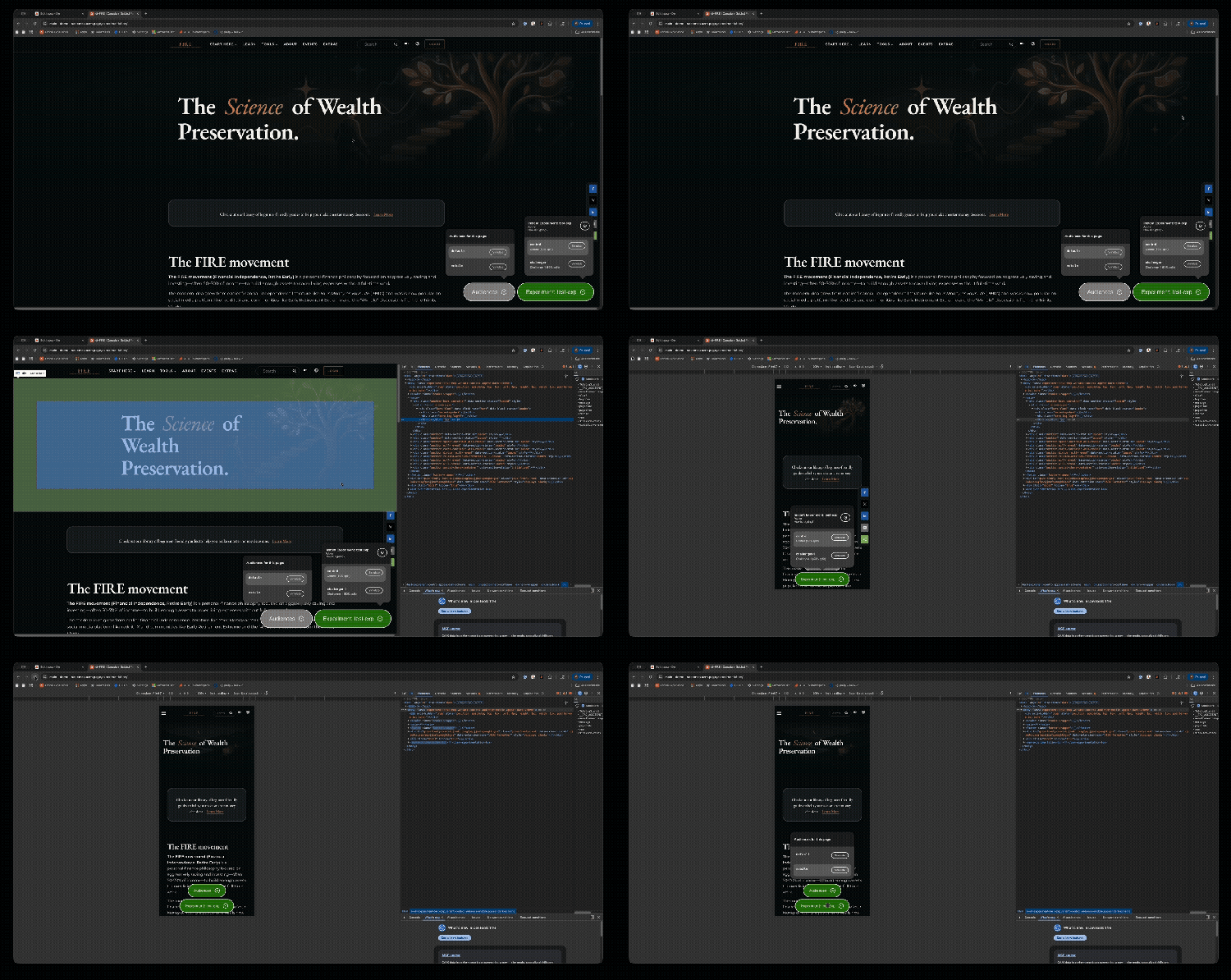
.aem.page. The overlay pill shows Audiences with all configured segments. Click Simulate next to Mobile to force the mobile experience. This appends?audience=mobileto the URL.For reference checkout:
- Audience Mobile Page: https://da.live/edit#/scdemos/demo/experimentation/experiments/test-exp/challenger-1
- Source Page: https://da.live/edit#/scdemos/demo/experimentation/index
- Preview URL: https://main--demo--scdemos.aem.page/experimentation/
-
Part 3: Campaigns (targeted experiences)
What to emphasize
- Campaigns are link-driven — activated by
?campaign=or?utm_campaign=URL parameters - UTM support is built in, so marketing teams use the same tracking parameters they already have
- No tracking pixel setup, no tag manager rules — just append the parameter to email/social links
- Multiple campaigns can coexist on the same page
- Campaigns can be combined with audiences for conditional targeting (e.g. mobile-only campaign)
Steps
-
Create campaign-specific content — duplicate the landing page and create a holiday variant (e.g.
my-page-for-holiday). Add the seasonal content — promo banner, special offer, updated hero. -
Instrument the campaign — open the main page's Metadata block and add:
- Campaign: Holiday:
https://{branch}--{repo}--{owner}.aem.page/my-page-for-holiday
You can define multiple campaigns on the same page:
- Campaign: Holiday:
https://{branch}--{repo}--{owner}.aem.page/my-page-for-holiday - Campaign: Back2School:
https://{branch}--{repo}--{owner}.aem.page/my-page-for-back2school
- Campaign: Holiday:
-
Show how campaigns are triggered — campaigns activate via URL parameters:
?campaign=holiday?utm_campaign=holiday(industry-standard UTM parameter)
The marketing team simply appends the campaign parameter to the links in their emails or social posts.
-
Simulate campaigns — preview the page on
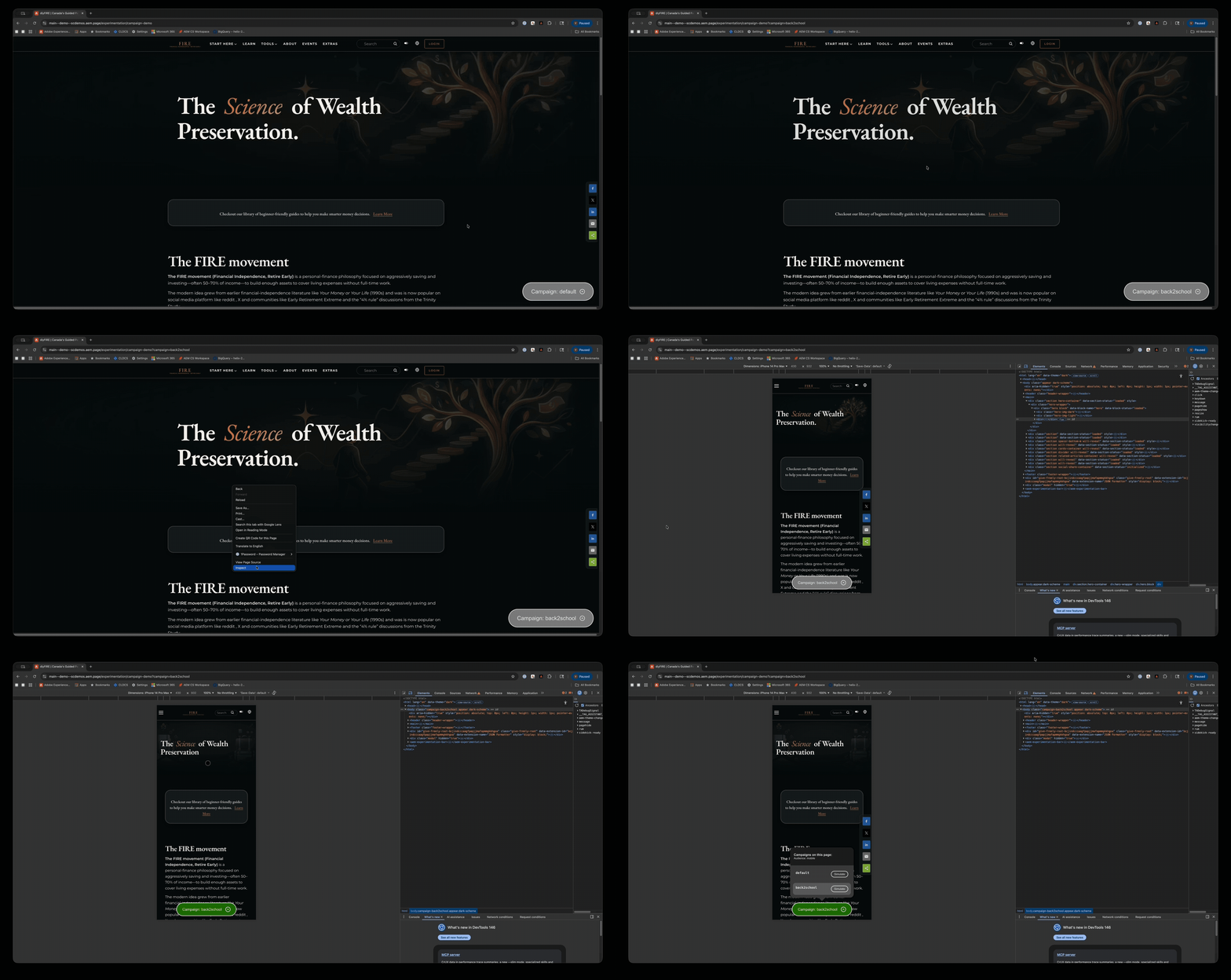
.aem.page. The overlay pill shows Campaigns with all configured variants. Click Simulate to preview the holiday experience. -
Campaign with audience targeting (optional talking point) — campaigns can be restricted to specific audiences by adding:
- Campaign Audience:
mobile
This means only mobile visitors arriving via the campaign link see the variant. Combines campaign activation (URL parameter) with automatic audience resolution.
- Campaign Audience:
For reference check out:
- Campaign: https://da.live/edit#/scdemos/demo/experimentation/experiments/test-exp/back2school
- Source Page: https://da.live/edit#/scdemos/demo/experimentation/campaign-demo
- Preview URL: https://main--demo--scdemos.aem.page/experimentation/campaign-demo
Combining features
For more advanced demos, show how the three features compose together:
- Experiment + Audience — Run an A/B test only for mobile users or US visitors. Add
Experiment Audiencemetadata to restrict which segment sees the test. - Campaign + Audience — Show a holiday landing page only to mobile visitors who click through from the email. Combine
CampaignandCampaign Audiencemetadata. - Audiences for auto-targeting — Serve a back-to-school page automatically to US visitors without any URL parameter. Use
Audience: USmetadata with a geo-based audience defined in code.
What to emphasize
- All author-driven: everything is configured in the page metadata — no code, no tickets.
- Privacy-first: no cookies, no PII, no consent banners needed.
- Built-in simulation: authors preview every variant before going live on localhost and
.aem.pageenvironments. - Native reporting: experiment performance tracked via AEM RUM — click the gear icon in the overlay to enter a domain key and see results inline.
- Composable: experiments can target specific audiences, campaigns can be audience-restricted, and audiences work standalone for automatic personalization.
Common questions
- How does the traffic split work? — Variants are split evenly by default. Authors can customize the split ratio in metadata. The remaining percentage goes to the control.
- Can we run multiple experiments on one page? — One experiment per page. If you need to test multiple things, use variant pages that combine the changes.
- How long until we see experiment results? — Results flow through RUM data. You need a domain key (generated at aemcs-workspace.adobe.com) and enough traffic to reach statistical significance. The overlay shows results inline once configured.
- Does this work on production? — Yes. Experiment/audience/campaign logic runs on all environments. The simulation overlay only appears on preview and localhost.
- What happens when an experiment ends? — The author removes the experiment metadata or sets status to Inactive. The winning variant content can be promoted to the main page.
- Can campaigns trigger automatically? — No — campaigns require a URL parameter. For automatic content switching based on conditions (geo, device), use audiences instead, or combine both.